
Mechanical Keyboards for Parents: Kid-Proof Picks Under $100
5 toddler-proof-ish mechanical keyboards under $100 for WFH parents
▶ Watch the 30s recap — or browse all reels
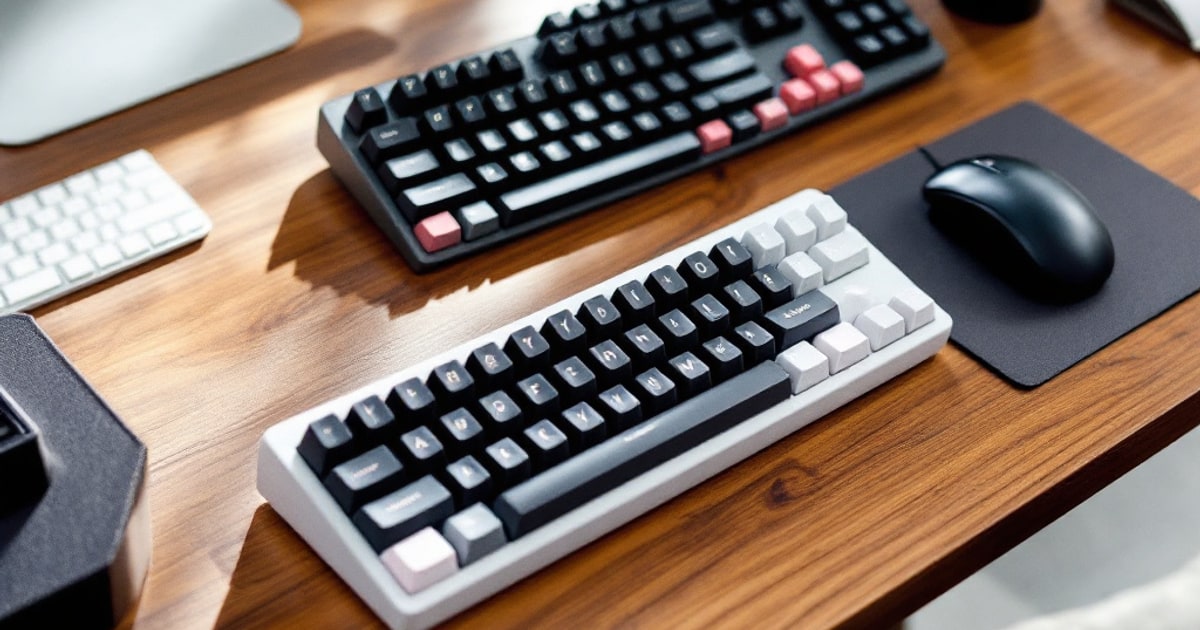
Mechanical keyboards under $100 that survive toddlers are a very specific category of gear. It lives somewhere between “serious work tool” and “object currently being marinated in apple juice.”
If you work from home in the Pacific Northwest, where half the year is gray and the other half is slightly brighter gray, your keyboard ends up doing real duty: work, email, grocery lists, late-night note taking, and emergency muting when somebody discovers the dog bowl. I ranked these for actual family life, not gamer marketing, and if you are still fixing the rest of your desk, start with my work from home setup under $300 guide before you spend money in the wrong place.
Why mechanical beats a $20 membrane keyboard
The case for mechanical is not that you suddenly need to become a keyboard guy. Nobody needs a new hobby that requires switch pullers, lube stations, and opinions about foam layers. The case is simpler: mechanical keyboards are better tools.
A cheap membrane board feels acceptable right up until you have to write on it for four hours straight. Then the mush shows up. Key presses feel inconsistent, the bottom-out is harsh, and one sticky key can make the whole thing feel like it came free with a motel conference room. Mechanical switches actuate more consistently, which means less finger fatigue, fewer missed letters, and a lot less of that angry double-backspace rhythm when you are answering Slack while reheating dinosaur nuggets.
They are also much easier to live with after an incident. On a membrane keyboard, spilled juice usually means liquid works its way into a rubber dome sheet and you begin bargaining with electronics. On a mechanical board, keycaps come off, debris is easier to remove, and on hot-swappable models one dead switch can be replaced instead of sentencing the entire keyboard to the garage drawer of shame. For WFH parents, that repairability matters more than RGB ever will.
The one spec that decides how loud your desk gets
Every mechanical key sits on a switch, and switches come in three families. The number that matters is operating force — how hard you have to press before the key registers, measured in centinewtons (cN).
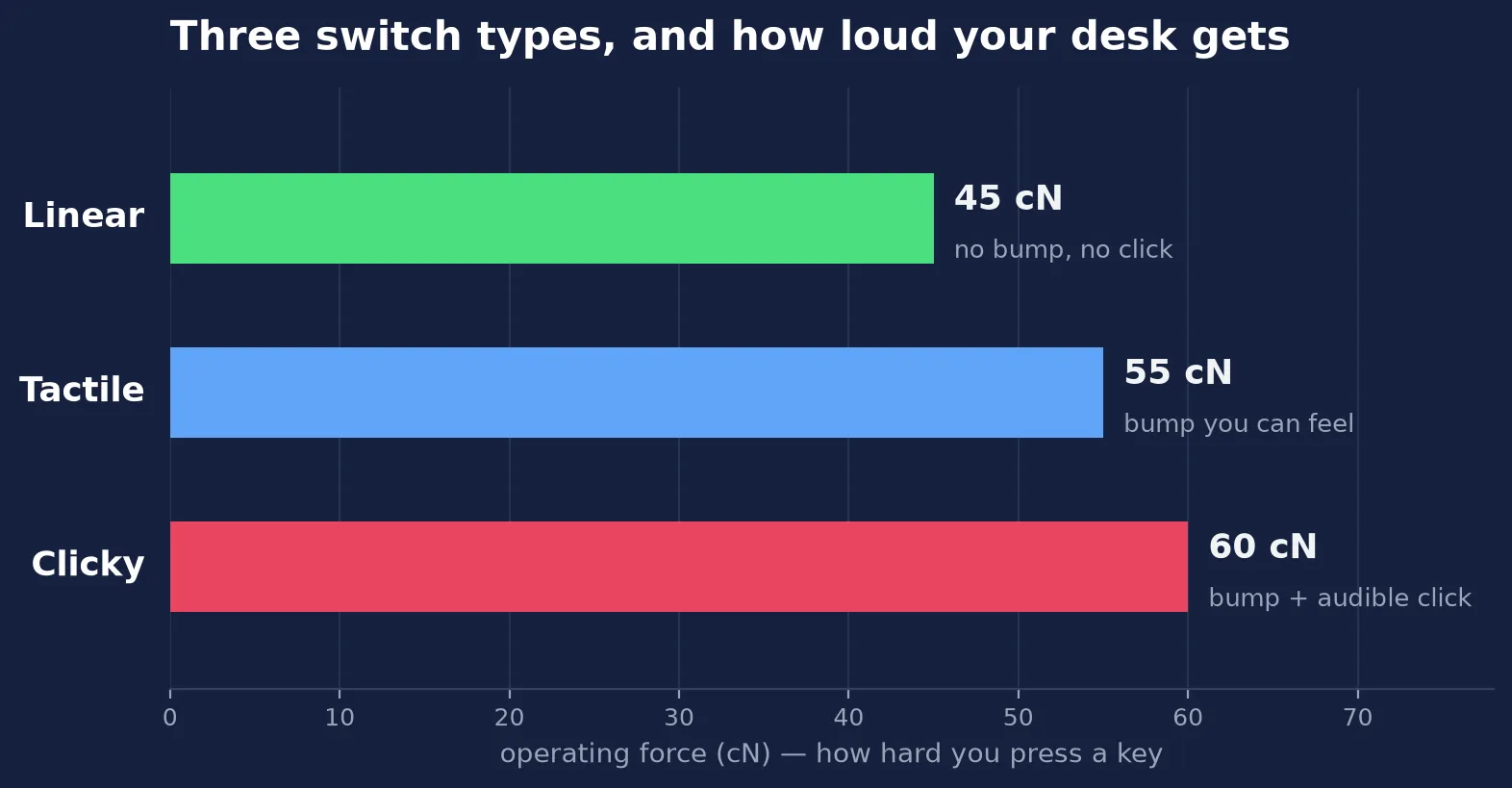
Linear is the lightest and the quietest — nothing interrupts the keypress at all. Tactile adds a small bump you can feel but barely hear. Clicky adds a deliberate click on purpose, which is wonderful in an empty house and a genuine liability at 8pm three feet from a cot. If there is a sleeping child anywhere in the blast radius, pick linear or tactile and do not let anyone talk you into blues.
How a toddler tests your keyboard
Forget laboratory conditions. The real stress test is cracker dust in the corners, random desk drumming, an occasional milk splash, and the mysterious disappearance of exactly one keycap. A toddler does not review a keyboard. A toddler performs destructive QA with jam on their sleeve.
So I ranked these five boards on the stuff that actually matters:
- Spill resistance: not waterproofing, just how likely the board is to recover after a fast unplug, wipe-down, and full dry-out.
- Key-pop noise: because the loudest keyboard in America is always the one next to a sleeping baby.
- Build quality: flex, stabilizers, cable security, and whether it feels like it can survive a short trip off the desk.
- Typing feel: whether you would happily use it all day for real work.
- Value: street price in May 2026, not fantasy MSRP.
One boring tip that works: put any of these on a desk mat, keep drinks off to one side, and steal a few cable-control ideas from my home organization products under $25 roundup. It lowers the odds of your keyboard getting launched by a charging cable during a 10 a.m. meeting. And if your mornings need less chaos in general, pair this with my dad hacks that actually save time list and pretend you planned the whole system.
#1 Keychron K2 V2
Street price: about $85 to $95 for the hot-swappable version
Toddler test: Spill recovery 4.5/5 · Noise 3/5 · Build 4/5 · Feel 4.5/5 · Value 4.5/5
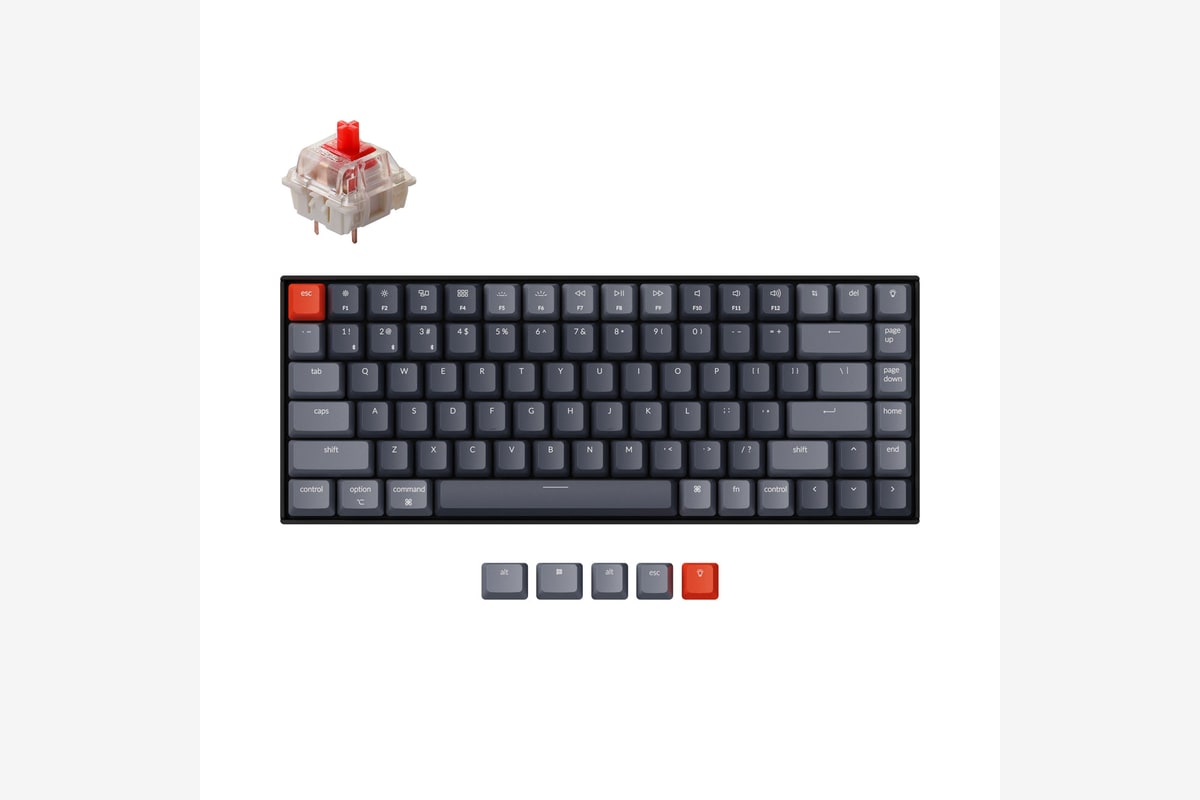
This is my winner because it does the adult thing and the parent thing at the same time. The adult thing: it is genuinely nice to type on. The parent thing: when one switch starts acting weird after a sticky spill, the hot-swappable version gives you a repair path instead of a small funeral.
The 75 percent layout is the sweet spot for working parents. You keep arrow keys and the function row, but you do not waste desk space on a numpad you probably use twice a month. The wireless plus wired setup is handy if your desk sometimes becomes a homework station, and the Mac/Windows toggle is great for mixed-device houses. Keychron also sells lower-profile boards if that is your preference, but the K2 V2 is the sturdier all-rounder and the easier one to find under $100.
Its downside is height. This board sits tall, and if you type all day you will want a wrist rest. It is also not the quietest pick here. Get red or brown switches, put it on a mat, and it becomes civilized enough for normal family life. Blue switches remain a cry for help.
#2 Logitech MX Mechanical Mini
Street price: about $99 on sale
Toddler test: Spill recovery 3.5/5 · Noise 5/5 · Build 4.5/5 · Feel 4/5 · Value 3.5/5
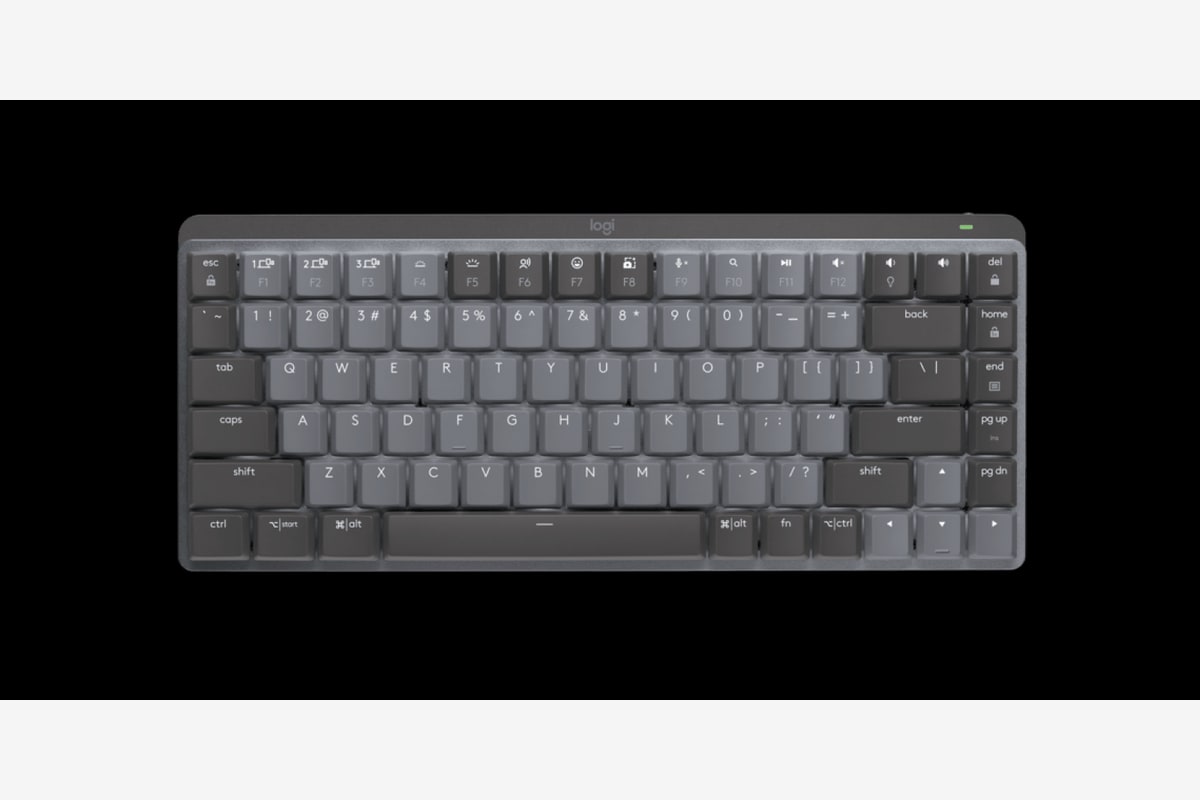
If your office shares a wall with a nursery, this is the quietest good option in the bunch. The low-profile quiet tactile switches are excellent for people who want mechanical feel without sounding like they are filing a tax appeal on a typewriter. For naptime use, this one is the clear winner.
It also behaves well in real life. The low-profile caps are easy to wipe, the chassis feels expensive, and Logitech’s multi-device wireless remains annoyingly convenient. If your workday includes bouncing between a laptop and a home desktop, it is smoother than most budget boards. The typing feel is crisp without being aggressive, which is exactly what I want at 6:10 a.m. with coffee still negotiating terms.
Why is it not number one? Repairability. It is not hot-swappable, and because it only sneaks under $100 when sales are being generous, the value case is thinner. Still, if noise matters more than mod potential, this is the parent board I would choose first. You can usually find it at big-box retailers or Amazon when the price dips.
#3 Akko 3068B
Street price: about $90
Toddler test: Spill recovery 4/5 · Noise 3.5/5 · Build 4.5/5 · Feel 4/5 · Value 4.5/5
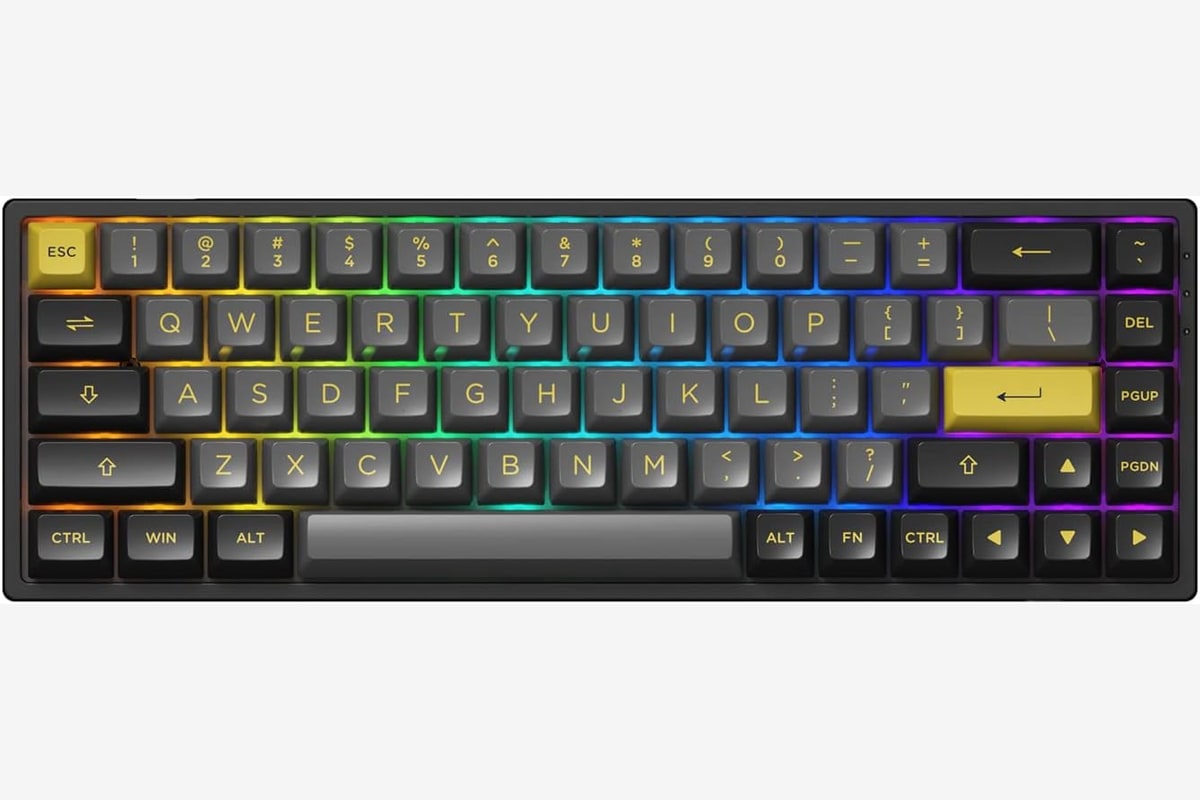
The Akko 3068B is what I recommend to parents who are working from a corner, not a dedicated office. It is a 65% compact, usually wireless on the Plus models, and built well enough that you do not need to have a family budget summit before buying it. The PBT keycaps come standard, which is the boring detail that ends up saving you the most — they do not get oily fingerprint shine when somebody plays with them while you are getting coffee.
Most current 3068B bundles under $100 ship with Akko’s own switches in pink, brown, or jelly variants, plus a USB-C wired connection (the Plus version adds Bluetooth and 2.4GHz wireless). The compact footprint leaves room for a notebook, a snack quarantine zone, or the tiny pile of random toy parts that somehow migrates to every adult desk. If your office nook is more “spare wall plus hope” than “home studio,” it fits the same space-saving logic as my gaming setup for small spaces guide.
The caution is software. Akko’s configurator is fine but not great, so if you live for per-key RGB scripting you may want something with QMK/VIA support out of the box. The stabilizers are also a small step behind the K2 V2, although they are very tunable if you ever get curious. For raw build quality at the price, it is hard to beat.
#4 Keychron C3 Pro
Street price: about $45
Toddler test: Spill recovery 3.5/5 · Noise 3.5/5 · Build 3.5/5 · Feel 4/5 · Value 4.5/5
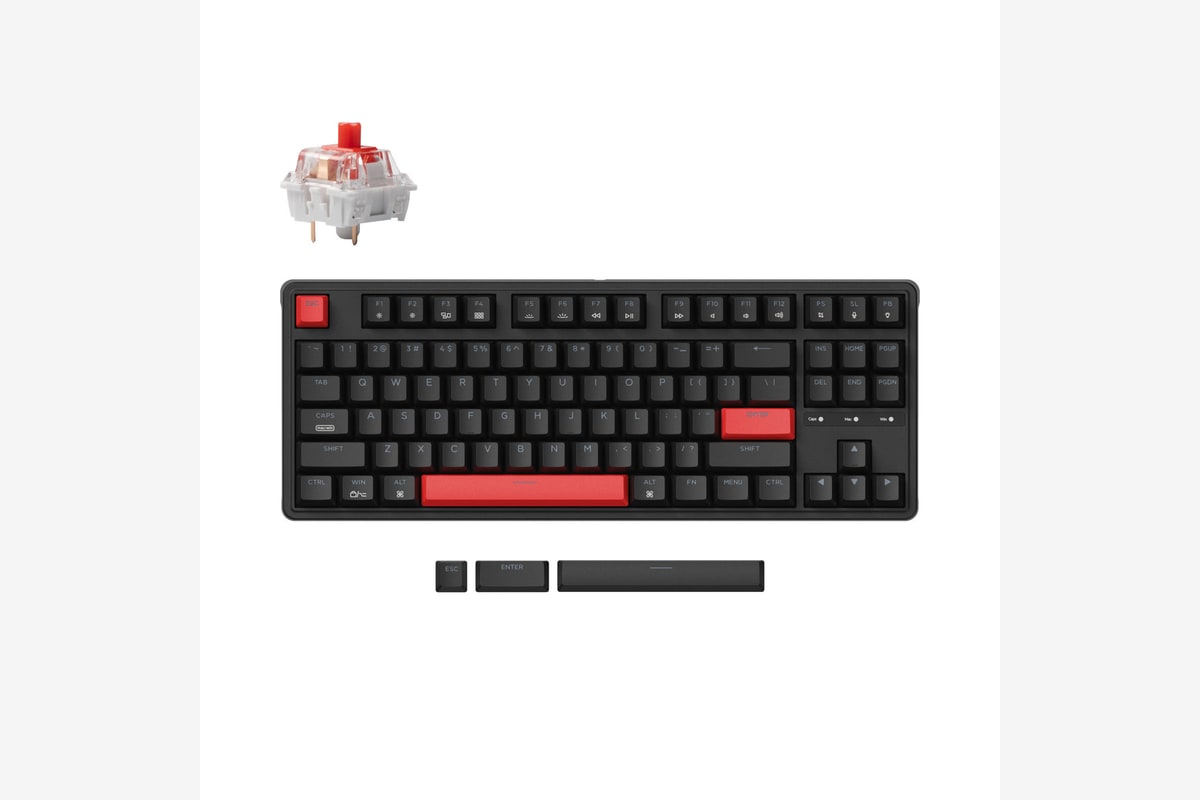
The C3 Pro is the best entry-level pick if you want a real keyboard and zero drama. It is wired, straightforward, and better behaved than a lot of the random Amazon boards that win on price and lose on everything else. Keychron’s budget lineup has gotten much better, and this one feels like the point where “cheap mechanical” stops being a warning label.
Typing feel is the story here. It has a cleaner, more composed feel than the typical bargain-bin board, and the tenkeyless layout is practical for work. You keep the keys you need, lose the desk hog on the right, and gain enough mouse space that your shoulder stops filing complaints. It is also a solid pick for the parent who wants one keyboard that handles spreadsheets by day and a little late-night writing once the house calms down.
Why is it fourth instead of third? Fewer convenience features. No wireless, less upside for tinkering, and depending on the exact SKU you find, fewer repair-friendly perks than the K2 V2 or 3068B. But as a first mechanical keyboard under $50, it is very easy to recommend.
#5 Redragon K552 Kumara
Street price: about $40
Toddler test: Spill recovery 3/5 · Noise 2/5 · Build 5/5 · Feel 3/5 · Value 4.5/5
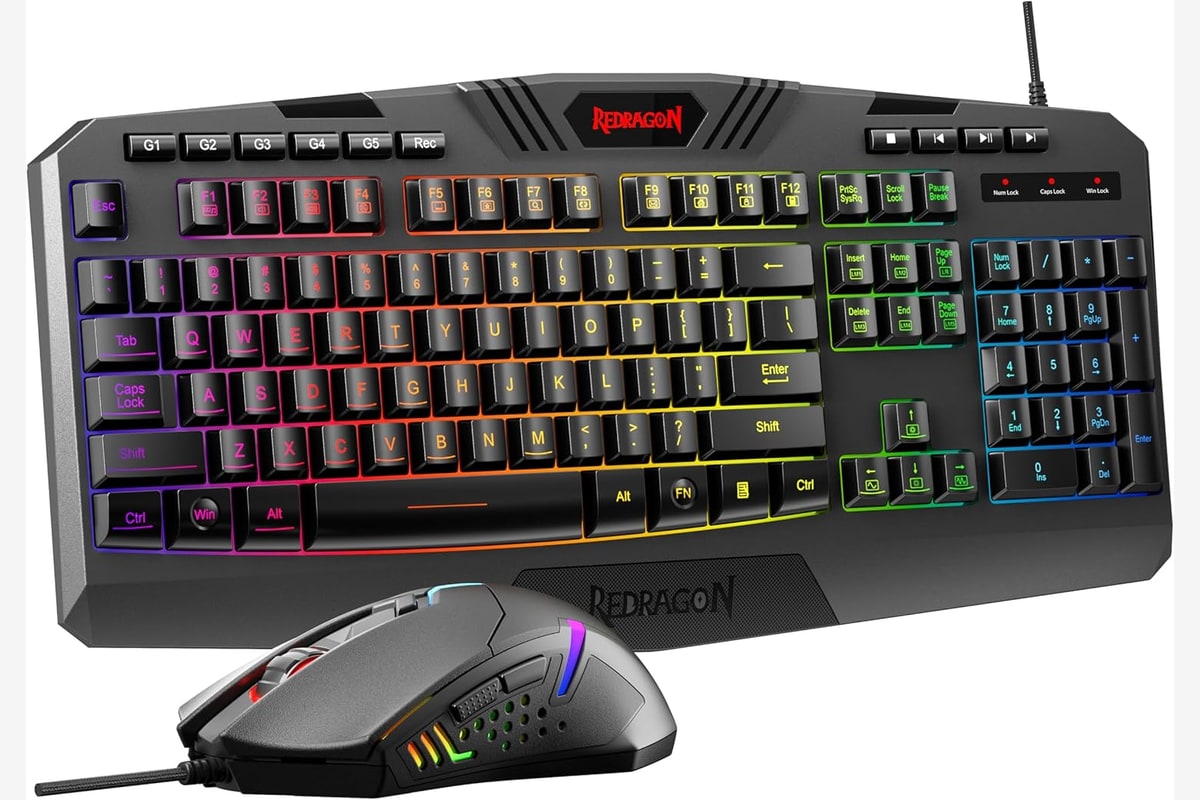
This is the “literally drop it and it still works” choice. The K552 Kumara has been around forever in keyboard years, which is usually a sign that it solved the assignment. The metal top plate makes it feel tougher than its price suggests, and it tolerates rough handling better than most budget boards. If your child treats your office like a mixed-use shipping terminal, that matters.
The problem is noise. Many K552 variants are loud out of the box, and even the quieter switch options still sound more like “determined typing” than “sleeping-baby-safe.” The stabilizers are serviceable, not refined, and the overall feel is more durable than delightful. It is a keyboard I respect more than I love.
Still, forty bucks for this much toughness is real value. If your main requirement is surviving chaos on a tight budget, the K552 absolutely belongs on the shortlist. Just try to get the red-switch version if possible, unless the entire family already sleeps through freight trains and Seahawks postgame fireworks.
Decision tree: which one if your priority is X?
If you want the best overall balance of repairability, typing feel, and parent-proof usefulness, buy the Keychron K2 V2.
If you want the quietest board for naptime, shared offices, or baby-next-door walls, buy the Logitech MX Mechanical Mini.
If you want the smallest footprint and the best build-for-the-money deal, buy the Akko 3068B.
If you want the safest first mechanical keyboard with no weird surprises, buy the Keychron C3 Pro.
If you want the cheapest tank that can survive being treated like sporting equipment, buy the Redragon K552 Kumara.
My short version? For most WFH parents, the K2 V2 is the right call. It is the board most likely to survive both your workday and your household. The Logitech is the specialist pick if quiet matters most. The Redragon is the budget bunker. And whichever one you choose, skip blue switches unless you are trying to turn your home office into a telegraph museum.
How much desk space each size actually costs you
Keyboard sizes get written as percentages, which tells you nothing useful when you are trying to fit a keyboard, a mouse, a notebook and a coffee onto one shared family desk. Here is what the percentages mean in inches and keys.
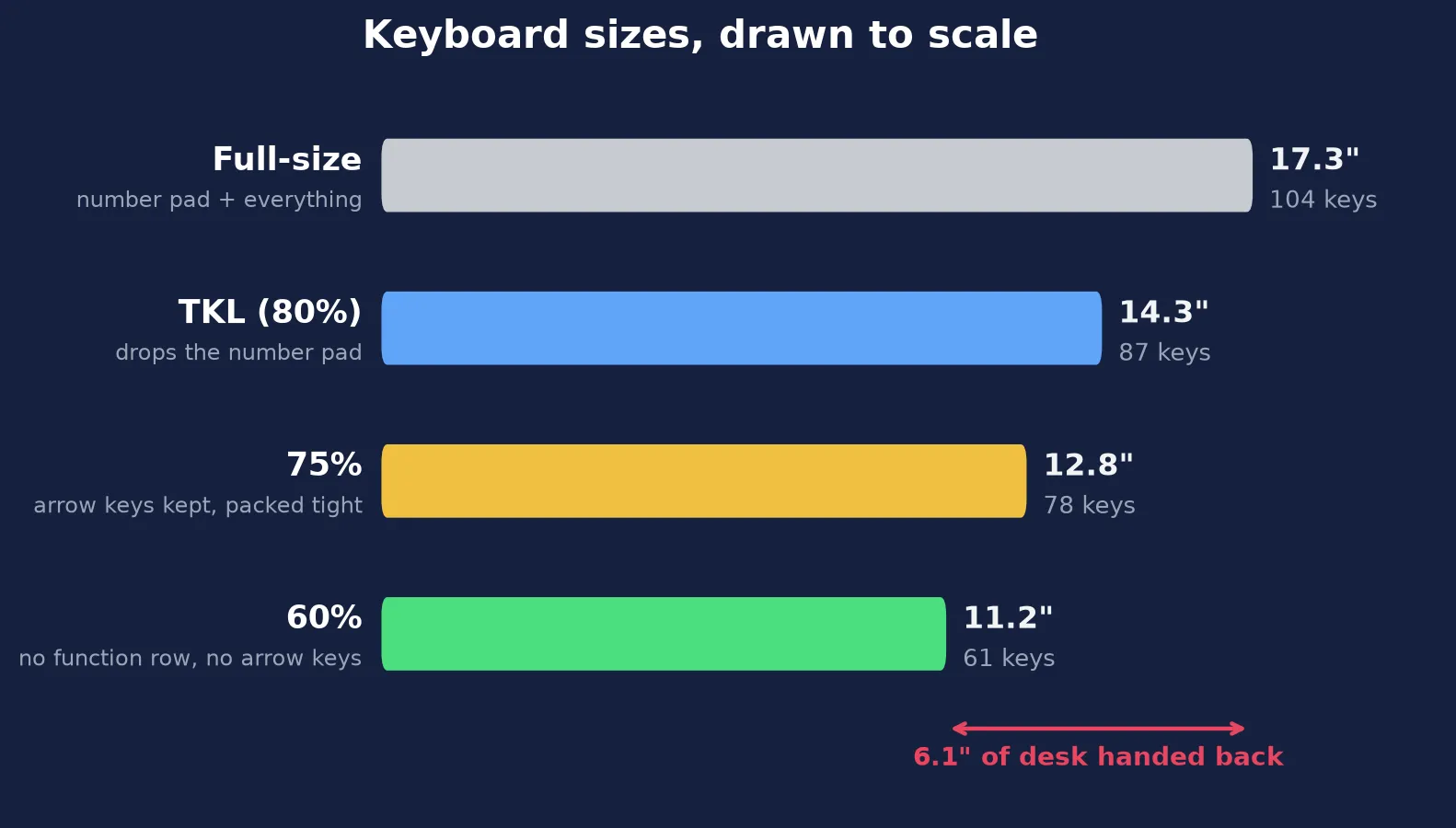
Dropping the number pad is the single biggest win — a tenkeyless hands back three inches without removing a key you use for anything except spreadsheets. Going all the way down to 60% buys another three, but you lose the function row and the dedicated arrow keys, which then live under a modifier key. That is a fine trade for an adult who will learn the layer. It is a miserable one for a child still working out where the letters are, which is why 75% is usually the sweet spot for a shared or kid-used desk: compact, but the arrow keys are still physically there.
Frequently Asked Questions
Frequently Asked Questions
Are mechanical keyboards really worth it for parents who work from home?
+
Yes. Not because they are trendy, but because they hold up better and feel better over long days. A standard membrane keyboard uses a rubber dome under each key that softens and wears out with use, and the printed legends rub off the keycaps over time. A decent mechanical board is easier to clean, easier to troubleshoot, and usually easier to keep for years instead of months. When family life is already chewing through chargers, cups, and couch cushions, owning one tool that can be maintained instead of replaced feels almost rebellious.
Which switch type is quietest around a sleeping baby?
+
Quiet tactile and linear switches are the safe bets. Linear switches are the lightest at roughly 45 cN of operating force and have no bump or click at all. Tactile switches sit around 55 cN and give you a subtle bump you can feel but not really hear. What you want to avoid is a clicky switch — around 60 cN with a deliberate click built in — unless you are absolutely sure everyone in your house can sleep through a woodpecker convention.
Can any of these keyboards actually survive apple juice?
+
Survive, maybe. Enjoy it, no. None of these are true waterproof boards, so speed matters more than brand. Unplug the keyboard immediately, wipe it down, pull the keycaps if needed, and let it dry fully before reconnecting. Hot-swappable boards like the Keychron K2 V2 are the safest long-term bet because a single sticky switch is fixable instead of fatal.
Is compact better than full-size for a family desk?
+
Usually, yes, and the numbers are bigger than people expect. A full-size board is 104 keys and about 17.3 inches wide. Drop the number pad and a tenkeyless is 87 keys, a 75 percent is around 78 keys, and a 60 percent is 61 keys at roughly 11.2 inches — about six inches of desk handed back to you. That is the difference between room for a mouse, a notebook and a coffee, or not. A full-size board only makes more sense if you use the number pad every single day.
What size mechanical keyboard is best for a child?
+
A 60 percent or 75 percent board is usually the right call for smaller hands, because every key sits within easy reach instead of forcing a stretch across a number pad. The trade-off is that a 60 percent drops the function row and the dedicated arrow keys, which are reached through a modifier key instead — workable for an adult, frustrating for a child still learning where keys live. For most kids a 75 percent hits the balance: compact, but the arrow keys are still physically there.
Will a mechanical keyboard survive a kid learning to type?
+
Better than a membrane board will. A child learning to type hunts, pecks, and leans on individual keys far harder than an adult touch typist does, and that is precisely the load that flattens rubber domes and wears legends off cheap keycaps. Mechanical switches are rated for tens of millions of presses per key, and if one does fail on a hot-swappable board you replace that single switch rather than the whole keyboard.
What to Read Next
- Work From Home Setup Under $300
- Home Organization: 15 Products Under $25 That Actually Work
- 15 Dad Hacks That Actually Save Time
This post was AI-assisted and reviewed by Dad.

Written by Nick Reef
Nick is the Pacific Northwest dad behind OpsHQ Go — software engineer by day, parent of three by night. Everything here is tested first-hand by our family of five (plus three labs and an orange cat): recipes cooked in our kitchen, trails hiked on real weekends, games played at our table.
More about Nick & the family →Found this helpful? Share it!
Get More Shortcuts
Weekly tips, hacks, and adventures delivered to your inbox.
You Might Also Like
Fall Gear Tune-Up: How to Refresh Your Family’s Outdoor Setup Before the Winter Monsoon
8 min read
🔧 Dad HacksThe Emergency Coat Drying Trick: Saving Soaked Outerwear Without a Fuss
8 min read
🔧 Dad HacksHow to Turn Your Mudroom into a Homework Haven Without Losing Your Sanity
8 min read